Canvas Login Instructions
Home » Canvas Login
Canvas Login Instructions
If you are new to Northwestern and have not logged into Self-Service yet, please do that before attempting to log in to Canvas.
Instructions for logging into Self-Service
- Go to the Northwestern homepage (www.nwosu.edu)
- Hover your mouse over “Resources” and click “Canvas.”
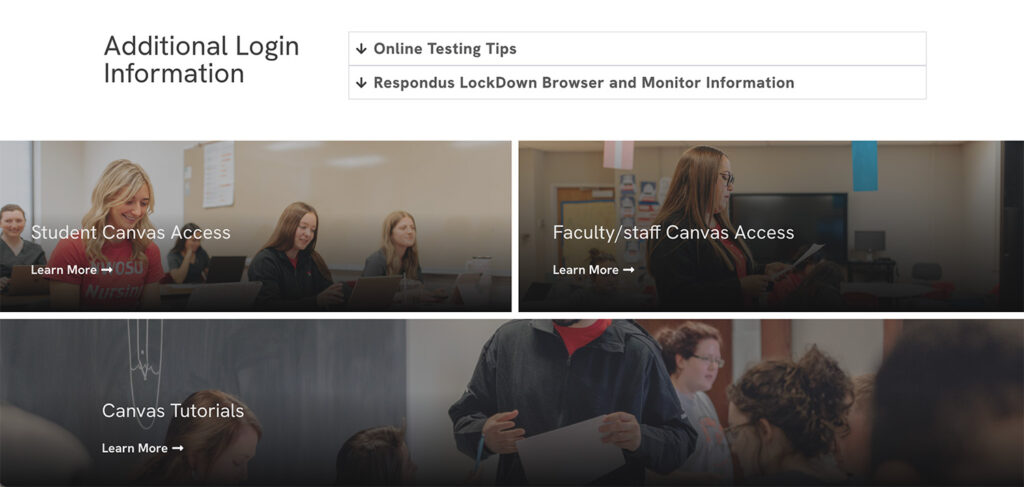
- At the bottom of the resulting page, click the button for Student Canvas Access.
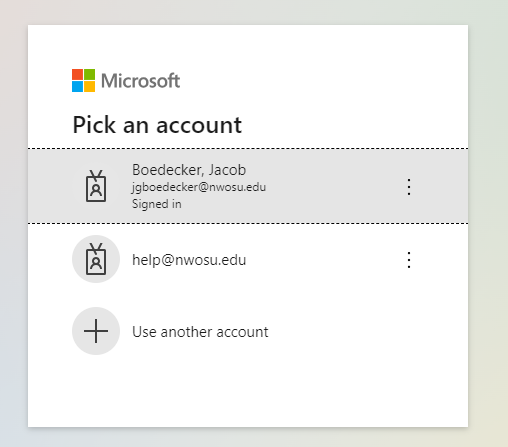
- The resulting page will show a Microsoft 365 login page. If your account is listed, click it. If your account is not listed, click “Use another account.”
- Use your full University email address as your username. Your password will be the same password that you use for your University email account and Self-Service. If you would like to reset your password, log into Self-Service, click your username in the upper right, then click “Change Password.” This will change your password for Canvas, Self-Service, and your University email. Note: when your change your password in Self-Service, it may take up to 30 minutes for the password to update in Canvas and email.
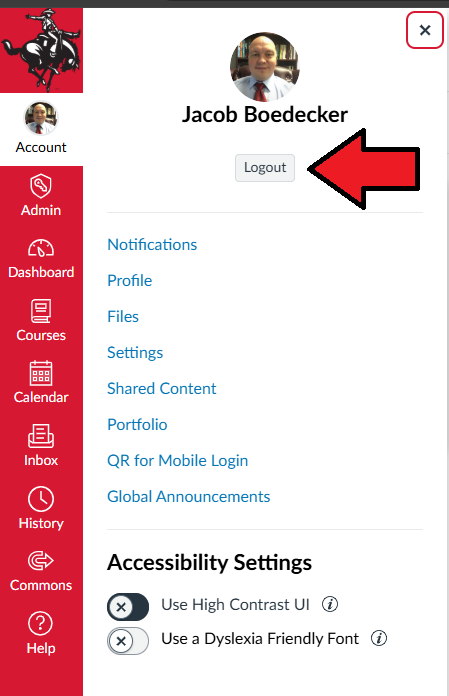
- If you are using a lab computer or a shared computer, make sure you sign out when you are finished working in Canvas. To logout, expand the “Account” area in the left navigation panel and click “Logout.”
6. If you get an error message, you may need to clear your browser’s cache and cookies. Instructions are below:
Clearing browser cache in Chrome
Visual Login Guide
Step 1: Visit the Northwestern Homepage
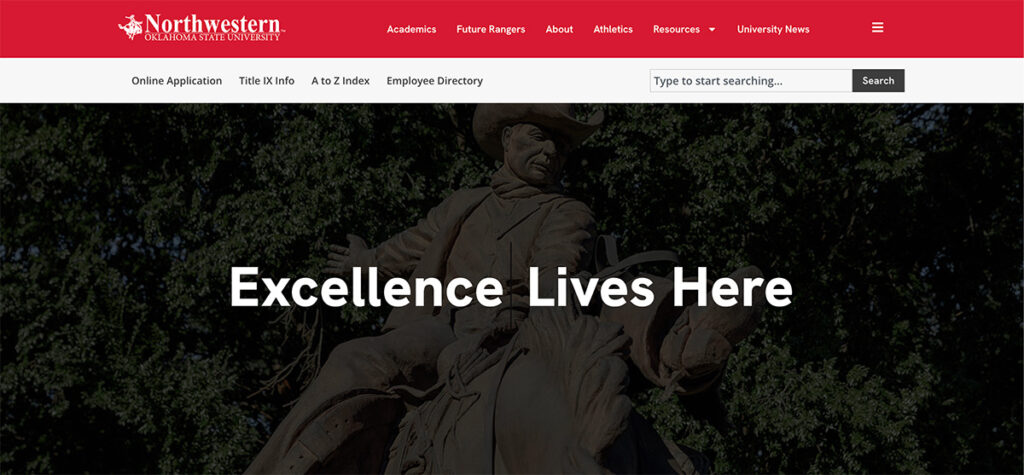
1. Go to the Northwestern homepage (www.nwosu.edu)
Step 2: Select Canvas from the Resources Menu
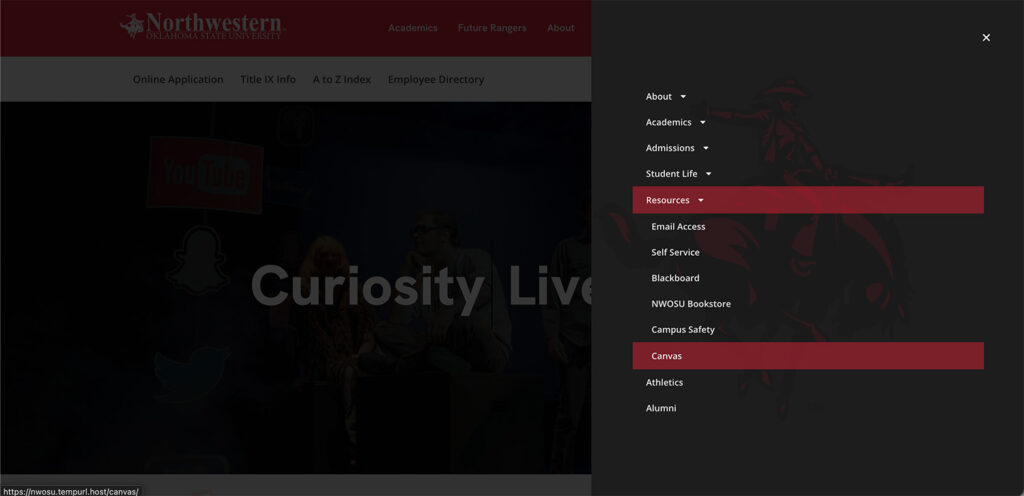
2. Hover your mouse over “Resources” and click “Canvas.”
Step 3: Open Student Canvas Access
3. At the bottom of the resulting page, click the button for Student Canvas Access.
Step 4: Sign In with Microsoft 365
4. The resulting page will show a Microsoft 365 login page. If your account is listed, click it. If your account is not listed, click “Use another account.”
Step 5: Enter Your University Credentials
5. Use your full University email address as your username. Your password will be the same password that you use for your University email account and Self-Service. If you would like to reset your password, log into Self-Service, click your username in the upper right, then click “Change Password.” This will change your password for Canvas, Self-Service, and your University email. Note: when your change your password in Self-Service, it may take up to 30 minutes for the password to update in Canvas and email.
If you are using a lab computer or a shared computer, make sure you sign out when you are finished working in Canvas. To logout, expand the “Account” area in the left navigation panel and click “Logout.”
Step 6: Sign Out When Finished/Resources
6. If you get an error message, you may need to clear your browser’s cache and cookies. Instructions are below:
Clearing browser cache in Chrome